Markdown to HTML Converter - Convert MD to HTML Online
Preview will appear here...
Write or paste Markdown and see the HTML output in real time. Use the toolbar to insert syntax, preview the rendered result, copy raw HTML, or download a ready-to-use HTML file — all free, no signup required.
What is Markdown?
Markdown is a lightweight plain-text formatting language created by John Gruber in 2004. The idea is simple: you write plain text with a few intuitive symbols for formatting, and a Markdown processor converts it to HTML automatically.
For example, surrounding a word with **double asterisks** makes it bold, a # at the start of a line creates a heading, and a - prefix creates a bullet list item. Markdown is designed so that the raw text itself is readable without any rendering.
How to Convert Markdown to HTML
- Type or paste your Markdown into the left pane. The HTML output updates instantly in the right pane.
- Use the toolbar buttons to insert Markdown syntax. Select text first to wrap it, or click a button to insert a template.
- Switch between Preview (rendered output) and HTML Code tabs in the right pane.
- Click Copy HTML to copy the raw HTML, or Download .html to save a complete HTML file you can open in any browser.
Markdown Syntax Reference
| Markdown | HTML Output | Description |
|---|---|---|
| # Heading | <h1> | Level 1 heading |
| ## Heading | <h2> | Level 2 heading |
| **text** | <strong> | Bold text |
| *text* | <em> | Italic text |
| `code` | <code> | Inline code |
| [text](url) | <a> | Hyperlink |
|  | <img> | Image |
| > text | <blockquote> | Quote block |
| - item | <ul><li> | Unordered list |
| 1. item | <ol><li> | Ordered list |
| --- | <hr> | Horizontal rule |
| ```code``` | <pre><code> | Fenced code block |
Common Markdown Use Cases
Technical Documentation
Most open-source projects write their documentation in Markdown. Tools like MkDocs, Docusaurus, and GitHub Pages automatically build websites from .md files. Markdown keeps the source clean and versionable in Git while rendering beautifully for end users.
README Files on GitHub
Every GitHub repository displays its README.md file as the project homepage. GitHub renders Markdown with GFM extensions including tables, task lists, and fenced code blocks with syntax highlighting. This tool supports all GFM features so you can preview your README exactly as GitHub will show it.
Blog Posts and Articles
Static site generators like Hugo, Jekyll, Gatsby, and Next.js accept Markdown blog posts. Writers can focus on content using familiar text symbols rather than wrestling with HTML tags. The converter helps you see the final HTML output before publishing.
Note Taking (Notion, Obsidian)
Modern note-taking apps like Notion, Obsidian, Bear, and Typora use Markdown as their core format. Notes written in Markdown are portable — they remain plain text files that any app can open, unlike proprietary formats.
Frequently Asked Questions About Markdown to HTML
What is Markdown?
Markdown is a lightweight plain-text formatting language created by John Gruber in 2004. It lets you write formatted text using simple punctuation — for example, **bold** for bold, # for headings, and - for bullet lists. Markdown is then converted to HTML for display on the web.
What is the difference between Markdown and HTML?
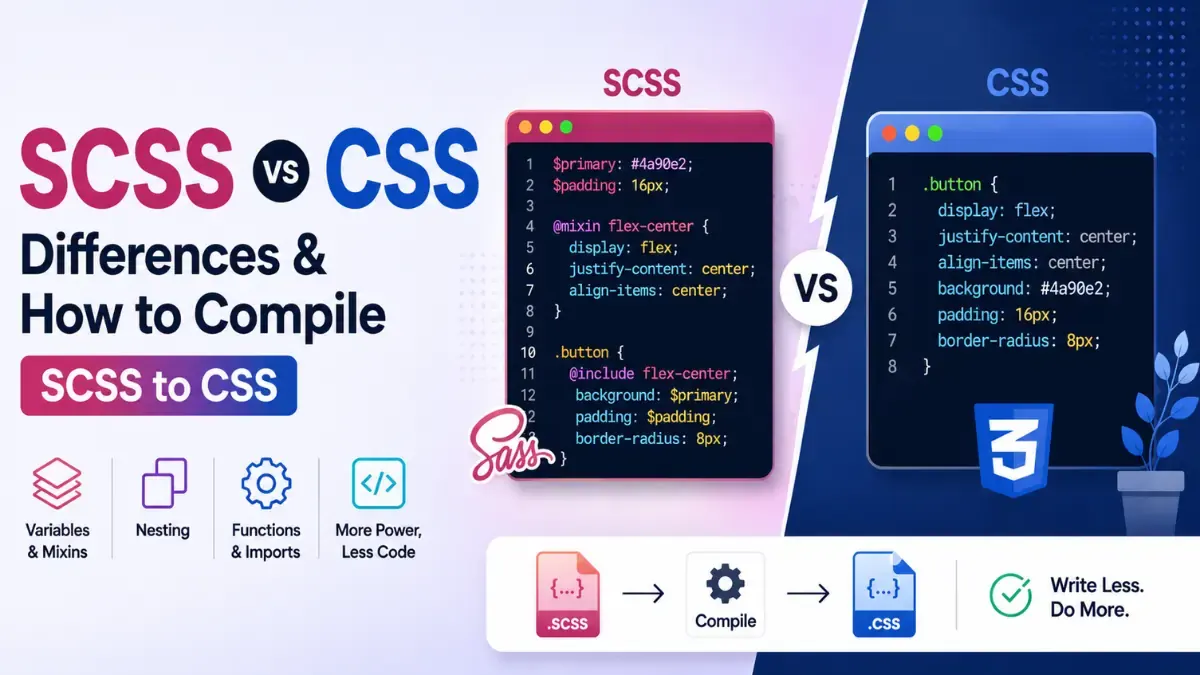
Markdown is a simple writing syntax that is easier to read and write than raw HTML. HTML is the markup language that browsers render. A Markdown converter like this tool transforms Markdown into clean HTML automatically, so you never need to write HTML tags by hand.
Is Markdown to HTML conversion free?
Yes, Calcon's Markdown to HTML Converter is completely free with no signup, no watermarks, and no usage limits. All conversion happens in your browser — nothing is sent to any server.
Can I download the converted HTML?
Yes. Click "Download .html" to download a fully self-contained HTML file with embedded CSS styles. The downloaded file can be opened in any browser directly. You can also click "Download .md" to save the Markdown source.
Does it support GitHub Flavored Markdown?
Yes. The converter uses the marked library with GFM (GitHub Flavored Markdown) enabled. This includes support for tables, fenced code blocks, strikethrough, task lists, and auto-linking URLs — all features used in GitHub README files.
How do I add a table in Markdown?
Use the toolbar's Table button, or type it manually: | Column 1 | Column 2 | on the first line, | --- | --- | on the second line (separator row), then | Cell 1 | Cell 2 | for each data row. Columns are separated by pipe characters (|).
Can I use this for README files?
Yes. GitHub README files use GitHub Flavored Markdown (GFM), which this tool fully supports. Paste your README.md content into the editor and see an instant live preview of how it will look on GitHub.
What Markdown features are supported?
Supported features include headings (H1-H6), bold, italic, inline code, fenced code blocks, blockquotes, ordered and unordered lists, tables, horizontal rules, links, images, and line breaks. GitHub Flavored Markdown extensions (GFM) are also supported.
Can I copy just the HTML output?
Yes. Switch to the "HTML Code" tab in the output pane and click "Copy HTML" to copy the raw HTML to your clipboard. You can then paste it into any website, CMS, or email editor.
Does this work on mobile?
Yes. The editor is fully responsive. On mobile, the Markdown input and HTML preview panels stack vertically so you can easily type and see the output. All toolbar buttons and download options work on mobile browsers.
Related Text Tools
Barcode Generator
Create CODE128, EAN, UPC barcodes and download SVG/PNG.
Binary to Text
Decode binary code to readable text instantly.
Case Converter
Convert text to any case format instantly.
Character Counter
Count characters and check social media limits instantly.
CSV to JSON Converter
Convert CSV to JSON with auto-detection and type inference.
Duplicate Line Remover
Remove duplicate lines with case and sort options.
Emoji Copy Paste
Click any emoji to copy it to clipboard instantly.
JSON to CSV Converter
Convert JSON arrays to CSV with nested object support.
Lorem Ipsum Generator
Generate dummy placeholder text instantly.
Password Generator
Generate strong random passwords instantly.
Get new tools & guides
Occasional updates, no spam.