
How to Convert PDF to Word Free (Without Losing Formatting)
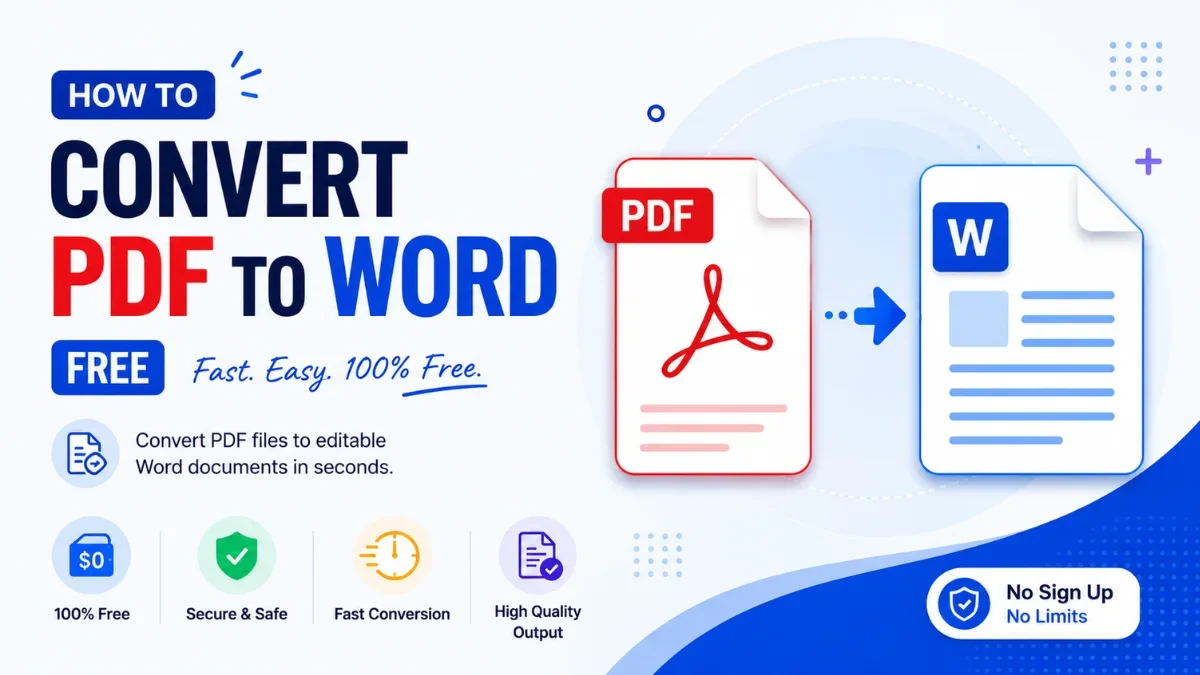
You have a PDF you need to edit — a resume, a contract, a report someone sent — but a PDF won't let you change a word. The fix is to convert it to an editable Word (.docx) document. The catch everyone runs into is formatting: a careless conversion turns a neat layout into jumbled text. This guide shows you how to convert PDF to Word cleanly, which files convert well, and what to do about the ones that don't.
You can convert any file for free with the Calcon PDF to Word Converter — no signup, no watermark. First, it helps to understand what is actually happening.
What Happens When You Convert PDF to Word
A PDF is a fixed layout — it stores text, fonts, and images at exact positions on the page, like a printout frozen in place. A Word document is the opposite: a flowing, editable format where text reflows as you type. Converting means the tool reads the PDF's contents and rebuilds them as editable Word elements — paragraphs, headings, tables, and images.
Because the two formats work so differently, the quality of the result depends almost entirely on one thing: how the PDF was created.
The One Thing That Decides Conversion Quality
Most guides skip this, and it is the whole game. There are two kinds of PDF:
• Text-based PDFs — created digitally (exported from Word, a browser, or software). The text is real, selectable text, so it converts to editable Word text almost perfectly.
• Scanned / image PDFs — created by scanning or photographing paper. The “text” is actually a picture, so a normal conversion gives you an image, not editable words. These need OCR (optical character recognition) to read the text out of the image first.
A quick test: open your PDF and try to select a line of text with your cursor. If it highlights, it is text-based and will convert cleanly. If you can't select it — it selects as a block or not at all — it is a scan and needs OCR.
Which PDFs Convert Well (and What to Do Otherwise)
PDF type | Conversion result | Tip |
|---|---|---|
Text-based, simple layout | Excellent — fully editable | Convert and edit directly; almost nothing to fix. |
Text-based with tables | Good — tables mostly preserved | Check merged cells and column widths after converting. |
Multi-column / magazine layout | Fair — may need cleanup | Expect to re-flow some sections; complex layouts are hardest. |
Scanned / photographed | Poor without OCR | Use a converter with OCR, or retype short sections. |
How to Convert PDF to Word with Calcon
1. Open the converter: calcon.in/pdf-to-word-converter.
2. Upload your PDF — drag and drop, or browse from your phone or computer.
3. Let the tool process the file; it rebuilds the text, tables, and images as editable Word content.
4. Download the .docx file and open it in Word, Google Docs, or any compatible editor.
5. Review the formatting, make your edits, and save.
It works the same on mobile and desktop, with no software to install.
Use Calcon on Android
Take useful Calcon tools with you wherever you go.
Why Formatting Sometimes Breaks — and How to Limit It
Even a good conversion can shift a few things, because Word has to re-interpret a fixed layout. The usual culprits and fixes:
• Fonts substitute. If the PDF used a font your device lacks, Word swaps it. Re-apply your preferred font after converting.
• Tables shift. Complex tables may need column widths or merged cells adjusted — a quick manual fix.
• Columns merge or split. Multi-column layouts are the hardest to reconstruct; expect light re-flowing.
• Images move. Pictures are kept but may need repositioning, since Word anchors them differently.
The cleaner and simpler the original PDF, the less of this you'll see — which is why a text-based, single-column document is the easiest possible conversion.
How Calcon Keeps Your Layout Intact
A weak converter dumps raw text and loses the structure. The Calcon converter rebuilds the document's structure — keeping paragraphs, headings, tables, and images in place rather than flattening everything into one block — so the .docx you get is genuinely editable, not a mess you have to rebuild. Your file is processed securely and is not retained after you download it.
After Converting: Quick Editing Tips
• Turn on formatting marks in Word (the ¶ button) to spot stray spaces and breaks from the conversion.
• Use Find & Replace to clean up any repeated artefacts in one pass.
• If you only need to edit a little, convert, fix, and re-export to PDF when done.
Frequently Asked Questions
Is converting PDF to Word free?
Yes. The Calcon PDF to Word converter is free, with no signup or watermark on the output.
Will my formatting be preserved?
For text-based PDFs, yes — text, tables, and images are kept and editable. Complex multi-column layouts may need light cleanup, and scanned PDFs require OCR.
Can I convert a scanned PDF to editable Word?
A standard conversion treats a scan as an image. To get editable text you need OCR; otherwise the words can't be edited as text.
Does it work on a phone?
Yes. The converter runs in the browser on phones, tablets, and computers alike.
Is my document safe?
Files are processed securely and are not kept after you download the result. For highly sensitive documents, avoid unknown sites.
What format do I get?
A standard .docx file that opens in Microsoft Word, Google Docs, LibreOffice, and other editors.
The Bottom Line
Converting PDF to Word is easy once you know the rule: text-based PDFs convert cleanly, scanned ones need OCR, and complex layouts need light cleanup. Check whether your text is selectable, then convert in seconds with the free Calcon PDF to Word Converter.
Get Calcon on Android. Quickly access useful tools whenever you need them.
Related Tools
Get new tools & guides
Occasional updates, no spam.
Latest Posts
PPF vs SIP: Where Should You Put Your Money?
SCSS vs CSS: What's the Difference & How to Compile SCSS to CSS
PPF vs Mutual Fund SIP: Which is Better for Long-Term Wealth Creation?
How to Resize Photo & Signature for Online Exam Forms (Size + KB Guide)
How to Resize Image Dimensions Online (Width, Height & Aspect Ratio)