What is an Image Cropper?
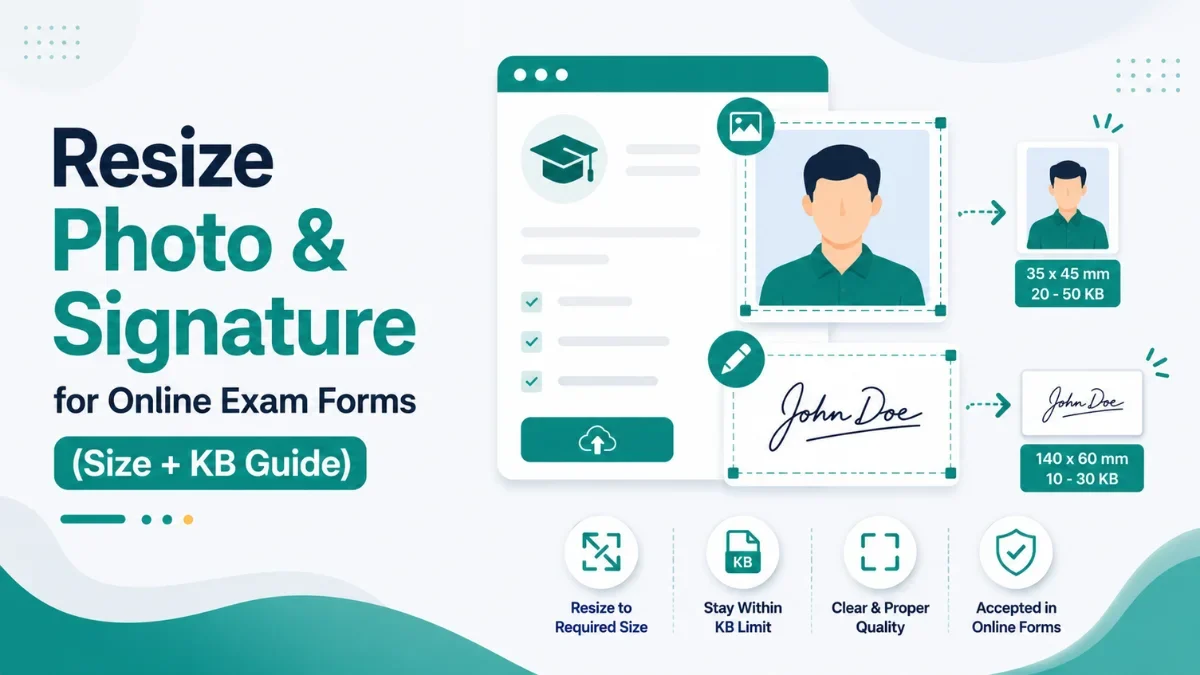
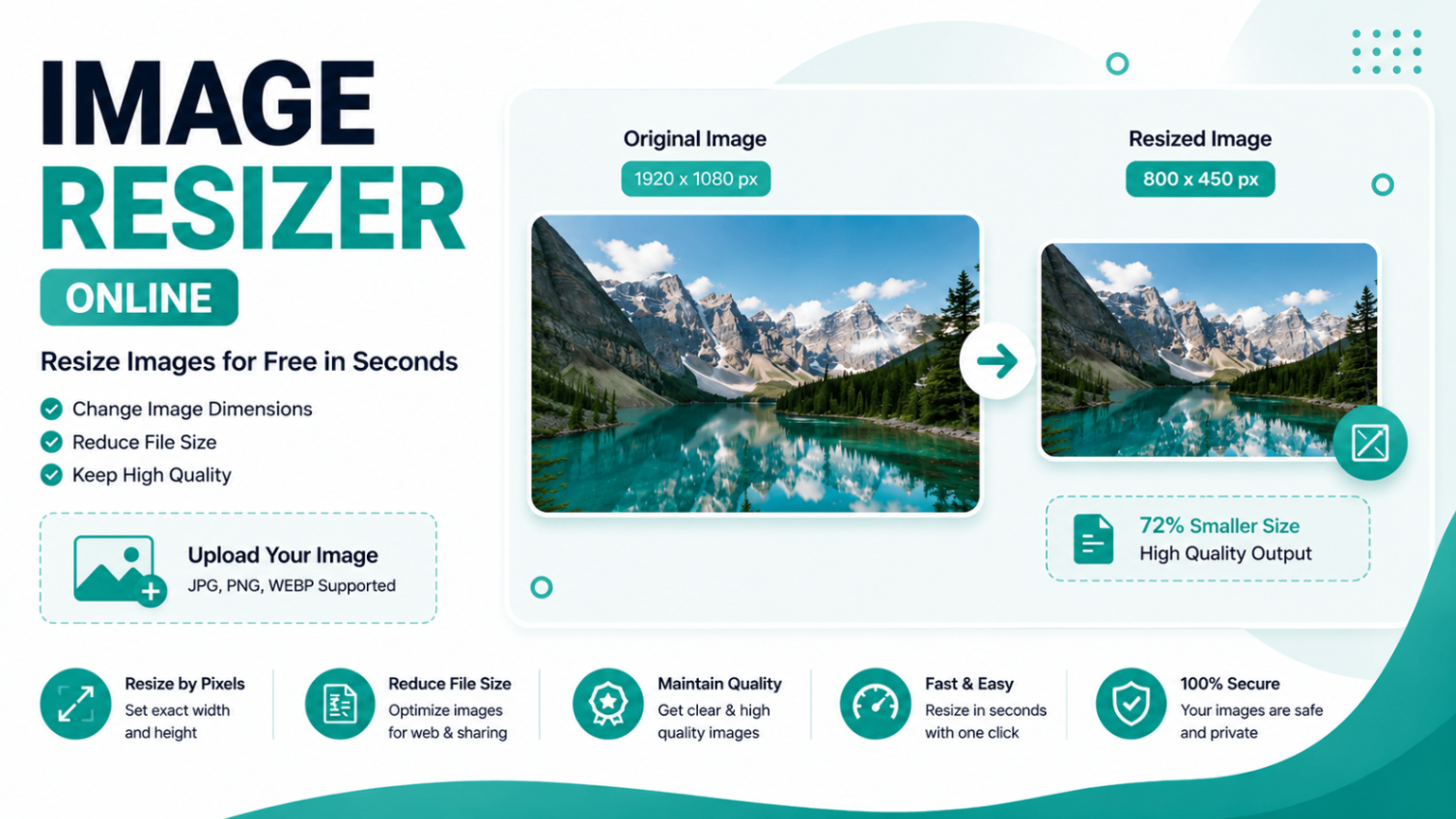
An online image cropper lets you cut or trim any portion of an image to your exact specifications. Whether you need to remove unwanted edges, focus on a specific subject, or resize an image to fit a specific platform like Instagram or YouTube — cropping is the fastest way to get the perfect frame.
Calcon's Image Cropper works entirely in your browser. No software to install, no files uploaded to any server, and completely free to use.
How to Crop an Image Online
- Upload your image by clicking the upload area or dragging and dropping a JPG, PNG, WEBP, GIF, or BMP file.
- Select an aspect ratio preset from the options — choose Free for custom cropping, or pick a social media preset like Instagram Post (1:1) or YouTube Thumbnail (16:9).
- Drag the crop handles to adjust your crop area, or drag inside the box to move it to the right position.
- Use the rotate and flip buttons to adjust orientation before cropping if needed.
- Click Crop Image to process your crop. Preview the result and download as JPG, PNG, or WEBP.
Social Media Image Size Guide
| Platform | Use | Width | Height | Ratio |
|---|---|---|---|---|
| Instagram Post | Feed image | 1080 px | 1080 px | 1:1 |
| Instagram Story | Story / Reel | 1080 px | 1920 px | 9:16 |
| Instagram Portrait | Feed | 1080 px | 1350 px | 4:5 |
| Facebook Cover | Page cover | 820 px | 312 px | — |
| Facebook Post | Feed post | 1200 px | 630 px | — |
| Twitter Header | Profile header | 1500 px | 500 px | 3:1 |
| Twitter Post | Tweet image | 1200 px | 675 px | 16:9 |
| YouTube Thumbnail | Video thumb | 1280 px | 720 px | 16:9 |
| LinkedIn Cover | Profile | 1584 px | 396 px | — |
| LinkedIn Post | Feed post | 1200 px | 627 px | — |
| WhatsApp DP | Profile pic | 500 px | 500 px | 1:1 |
Free Crop vs Fixed Aspect Ratio
Free Crop
Free crop lets you select any area of any shape or size. Ideal when you know exactly what portion of the image you want to keep without worrying about standard dimensions.
Fixed Aspect Ratio Crop
Locks the crop box to a specific ratio so your cropped image always matches platform requirements. For example, Instagram requires a 1:1 ratio for feed posts — using the 1:1 preset ensures your image is always square.
Social Media Presets
One-click presets for every major platform. Click "Instagram Post" and the crop box automatically locks to 1080×1080 proportions, ready to crop and upload directly.
Image Cropper vs Image Resizer — What's the Difference?
| Feature | Image Cropper | Image Resizer |
|---|---|---|
| Purpose | Remove parts of image | Scale entire image |
| Changes dimensions? | ✅ Yes | ✅ Yes |
| Removes content? | ✅ Yes (cuts edges) | ❌ No (scales all) |
| Stretches image? | ❌ No | ⚠️ Can distort |
| Best for | Focusing on subject | Making image smaller / larger |
| Social media | ✅ Great for presets | ⚠️ May distort |