Image to Text Converter – Extract Text from Photos & PDF
Click to upload or drag & drop an image or PDF
JPG, PNG, WEBP, BMP, TIFF or PDF (Max 10 MB)
Select language(s)
Tip: choose every language present in the image for the best accuracy.
What is an Image to Text Converter?
An image to text converter is a free online tool that uses OCR (Optical Character Recognition) to read the words inside a picture and turn them into real, editable text. Upload a photo, screenshot, or scanned document and Calcon will scan text from the image so you can copy text from the image, edit it, search it, or translate it — no manual retyping. This photo to text converter works on photographs of printed pages, app screenshots, signboards, receipts, JPG and PNG files, and multi-page scanned PDFs.
How to convert a photo to text
- Click the upload area or drag and drop your image, photo, or PDF (up to 10 MB).
- Select the language(s) present in the file — English is selected by default. Pick more than one if the picture mixes scripts (for example English + Hindi).
- Click Extract Text and wait a moment while the OCR runs.
- Read the result in the text box, then use Copy text to copy text from the image instantly or Download .txt to save it as a file.
Why use this picture to text converter?
Whether you need to copy text from a JPG to text, pull a quote out of a screenshot, or turn a printed page into an editable document, this pic to text tool does it in seconds. It runs entirely online — no app to install — so you can scan text from an image on any phone, tablet, or computer. Because it reads images directly, it also handles OCR PDF jobs that ordinary converters cannot: scanned and photographed PDFs become searchable, editable text.
Supported languages
Beyond English, the photo to text converter recognises a wide set of Indian-language scripts: Hindi, Tamil, Telugu, Bengali, Gujarati, Kannada, Marathi, Punjabi, Malayalam, Odia and Urdu. Selecting the correct language is the single biggest factor in accuracy — choosing every language that appears in the picture helps the OCR engine read mixed-script documents far more reliably.
Tips for better accuracy
OCR online works best on sharp, high-contrast images. Use good lighting, hold the camera straight on rather than at an angle, and avoid shadows or glare. If the text you scan from the image looks wrong, double-check that the right language is selected and try a clearer or higher-resolution photo. Handwriting and stylised fonts are harder to read than standard printed text.
Image to Text vs PDF to Word
A standard PDF to Word converter only works on PDFs that already contain selectable text. If your PDF is a scan or a photo of a page, those tools return nothing usable — because the page is really an image. This image to text converter solves exactly that with OCR PDF support, reading the text out of the picture first. To shrink large source photos before you convert a picture to text, try the Image Compressor.
Frequently Asked Questions
What is OCR / image to text?
Does it work on scanned PDFs?
Which languages are supported?
Is the image to text tool free?
Is my file kept or private?
Why is my extracted text inaccurate?
What file types and sizes can I upload?
Related Blog Posts
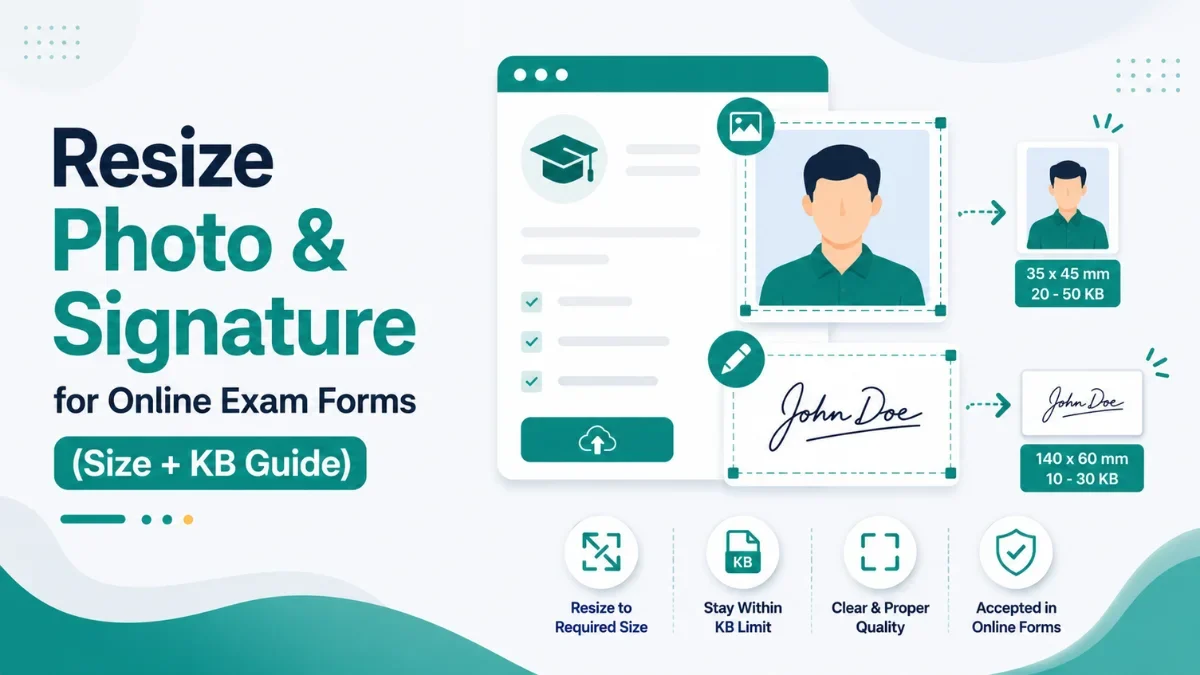
Related Image Tools
Favicon Generator
Generate all favicon sizes from any image instantly.
Image Color Picker
Pick colors from any image and get HEX, RGB, HSL values.
Image Compressor
Compress JPG, PNG, WEBP images — batch, no upload needed.
Image Converter
Convert images between various formats.
Image Cropper
Crop images to any size or aspect ratio instantly.
Image Editor Online
Crop, resize, filters, text, draw & shapes — all in browser.
Image Flip & Mirror
Flip, mirror, and rotate images online free.
Image Resizer Online
Resize images in seconds.
Image to Base64 Converter
Convert images to Base64 and decode Base64 to image.
Image Watermark Adder
Add text or logo watermarks to photos with live preview.
Get new tools & guides
Occasional updates, no spam.