
How to Convert Word to PDF Free (Keep Formatting Intact)
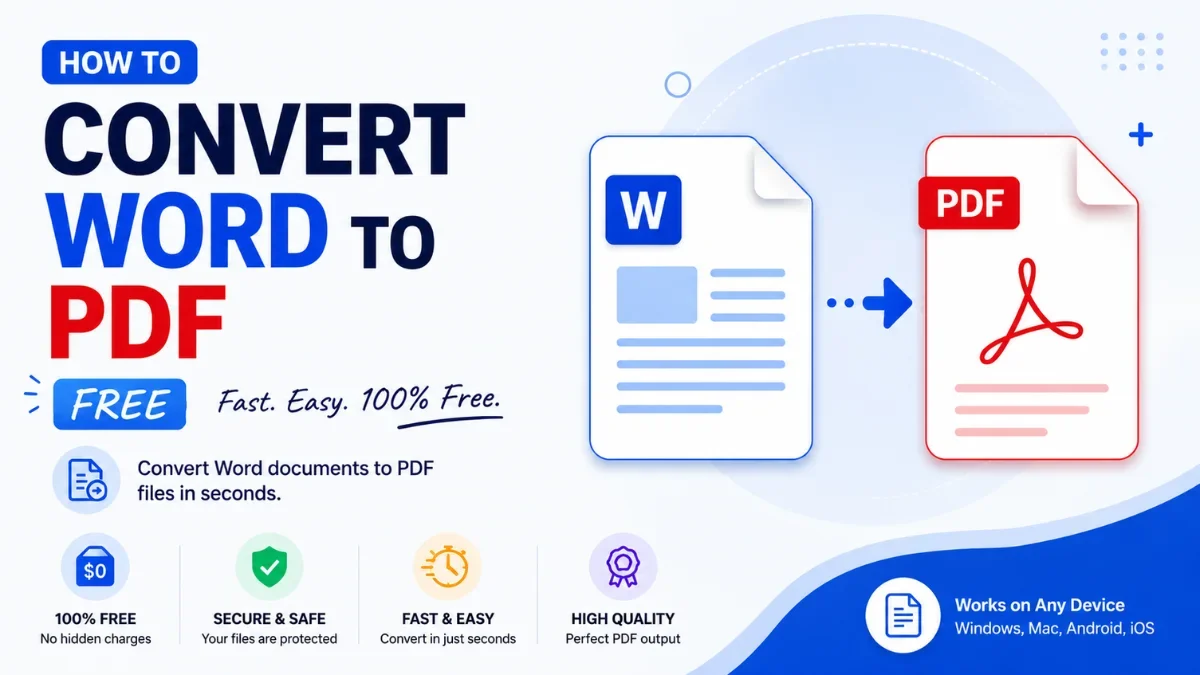
You finished a resume, a report, or an application - and now it needs to be a PDF. Maybe a job portal demands it, maybe you want it to look identical on every device, or maybe you just don't want anyone editing it. Converting Word to PDF is the answer, and unlike PDF-to-Word, it almost always preserves your layout perfectly. Here is how to do it right.
Convert any document free with the Calcon Word to PDF Converter - no signup, no watermark.
Why Convert Word to PDF?
A PDF does four things a Word file can't, which is why so many situations require it:
• Locks your formatting. Fonts, spacing, and layout look exactly the same on every device - a Word file can shift if the reader lacks your fonts.
• Is required for uploads. Job applications, university and government forms, and tenders almost always demand PDF.
• Prevents easy editing. Recipients can read and print, but not casually alter your document.
• Opens anywhere. Every device and browser opens a PDF without needing Word installed.
What Changes When You Convert
A Word file is an editable, flowing document; a PDF is a fixed snapshot of how it looks. Converting freezes the layout and embeds the fonts, so the page you see is the page everyone sees. Because Word-to-PDF goes from flexible to fixed (the easy direction), the result is usually pixel-accurate - the opposite of converting a fixed PDF back into editable Word.
Common Word-to-PDF Issues and How to Fix Them
Conversions are usually clean, but if something looks off, it is almost always one of these:
Issue | Why it happens | Fix |
Fonts look different | An uncommon font wasn't embedded | Use standard fonts, or embed fonts when exporting |
Hyperlinks don't work | Links weren't carried over | Insert links as proper hyperlinks in Word, not plain text |
Images shifted | Floating images re-anchor | Set images to 'in line with text' before converting |
Page breaks moved | Spacing re-flowed at export | Use explicit page breaks (Ctrl+Enter), not blank lines |
File too large | High-resolution images inside | Compress the PDF after converting (see below) |
How to Convert Word to PDF with Calcon
1. Open the converter: calcon.in/word-to-pdf-converter.
2. Upload your .doc or .docx file.
3. Let the tool render it to PDF with fonts and layout preserved.
4. Download the PDF and open it to confirm it looks right before sending.
It runs in the browser on phone and desktop, with nothing to install.
Tips for a Perfect PDF
• Always open the finished PDF and check it before submitting - a 10-second review catches font or image surprises.
• Stick to common fonts (or embed them) so text never substitutes on the reader's device.
• If an upload form has a size limit, compress the result - see Compress PDF.
Frequently Asked Questions
Is converting Word to PDF free?
Yes. The Calcon Word to PDF converter is free, with no signup or watermark.
Will my formatting stay the same?
Almost always, yes. Word-to-PDF preserves fonts, layout, and images far more reliably than the reverse direction. Embed any uncommon fonts to be safe.
Can I convert on my phone?
Yes. The converter works in any mobile or desktop browser.
Will my hyperlinks still work in the PDF?
Yes, as long as they were inserted as real hyperlinks in Word rather than typed as plain text.
Is my document safe?
Files are processed securely and not retained after you download the PDF.
The Bottom Line
Word to PDF is the easy, reliable direction - your formatting locks in and the document looks identical everywhere. Embed your fonts, review the result, and convert free with the Calcon Word to PDF Converter.
Related Tools

Get new tools & guides
Occasional updates, no spam.
Latest Posts
SCSS vs CSS: What's the Difference & How to Compile SCSS to CSS
PPF vs Mutual Fund SIP: Which is Better for Long-Term Wealth Creation?
How to Resize Photo & Signature for Online Exam Forms (Size + KB Guide)
How to Resize Image Dimensions Online (Width, Height & Aspect Ratio)
How to Remove a Password from a PDF (Unlock PDF Free)