Image Editor Online Free — Crop, Resize, Filters & Text
Drop your image here
or click to browse
JPG · PNG · WEBP · GIF · BMP · SVG · Max 20 MB
Edit images directly in your browser — no software, no signup, no watermarks. Crop, resize, rotate, apply filters, add text and shapes, draw freehand, and download in any format you need.
How to Edit Your Image
Step 1 — Upload your image
Drag and drop or click to upload any JPG, PNG, WEBP, GIF, BMP, or SVG file up to 20 MB.
Step 2 — Apply edits
Use the left panel tools — crop, resize, rotate, adjust brightness/contrast, apply filters, add text, shapes, or draw freehand.
Step 3 — Undo freely
Every action is undoable. Use Ctrl+Z / Ctrl+Y or the toolbar buttons to move through your edit history.
Step 4 — Download
Click Download, choose your format (JPG, PNG, WEBP) and quality, then save the file to your device.
What Can You Do With This Editor?
Crop & Resize
Freeform crop, aspect ratio presets, and pixel-perfect resize with aspect lock.
Rotate & Flip
Rotate by 90° steps or any custom angle. Flip horizontally or vertically.
Filters
10 one-click filter presets — Grayscale, Sepia, Vintage, Warm, Cool, Vivid, and more.
Adjustments
Brightness, contrast, saturation, sharpness, blur, and opacity sliders with live preview.
Text Overlay
Add styled text in any font, color, and size. Drag to position anywhere on the image.
Draw
Freehand drawing with pencil, marker, or spray. Adjustable size, color, and opacity.
Shapes
Add rectangles, circles, triangles, lines, and arrows with custom fill and stroke.
Stickers
Place emoji stickers on your image — resize and drag to position.
Frequently Asked Questions
Is this image editor completely free?
Yes. The Calcon image editor is 100% free with no signup, no watermarks, and no download limits. All editing happens in your browser — nothing is uploaded to any server.
What image formats can I upload?
You can upload JPG, PNG, WEBP, GIF, BMP, and SVG files up to 20 MB. After editing, you can download in JPG, PNG, or WEBP format.
Can I add text to my image?
Yes. Use the Text tool in the left panel to type your text, choose a font, size, and color, then click Add Text to place it on the canvas. Text can be dragged to any position and resized.
How do I crop an image to a specific ratio?
Open the Transform section and select Crop. Choose a preset ratio (1:1, 4:3, 16:9, etc.) or use Freeform for custom dimensions. Drag the crop handles, then click Apply Crop.
Are my edits saved automatically?
The editor supports unlimited undo (Ctrl+Z) and redo (Ctrl+Y) within your session. Edits are not saved between sessions — download your image before closing the browser tab.
Can I use this on mobile?
Yes. The editor supports touch gestures — drag to reposition objects, pinch to zoom the canvas, and use your finger in draw mode. The left panel collapses to a bottom sheet on small screens.
What filters are available?
The editor includes Grayscale, Sepia, Invert, Vintage, Warm, Cool, Fade, Vivid, and Matte filter presets. Click any filter thumbnail to apply it instantly.
How do I download the edited image?
Click the Download button in the toolbar. Choose your output format (JPG, PNG, or WEBP), adjust quality if needed, and click Download. The file saves directly to your device.
Related Blog Posts
Related Image Tools
Favicon Generator
Generate all favicon sizes from any image instantly.
Image Color Picker
Pick colors from any image and get HEX, RGB, HSL values.
Image Compressor
Compress JPG, PNG, WEBP images — batch, no upload needed.
Image Converter
Convert images between various formats.
Image Cropper
Crop images to any size or aspect ratio instantly.
Image Flip & Mirror
Flip, mirror, and rotate images online free.
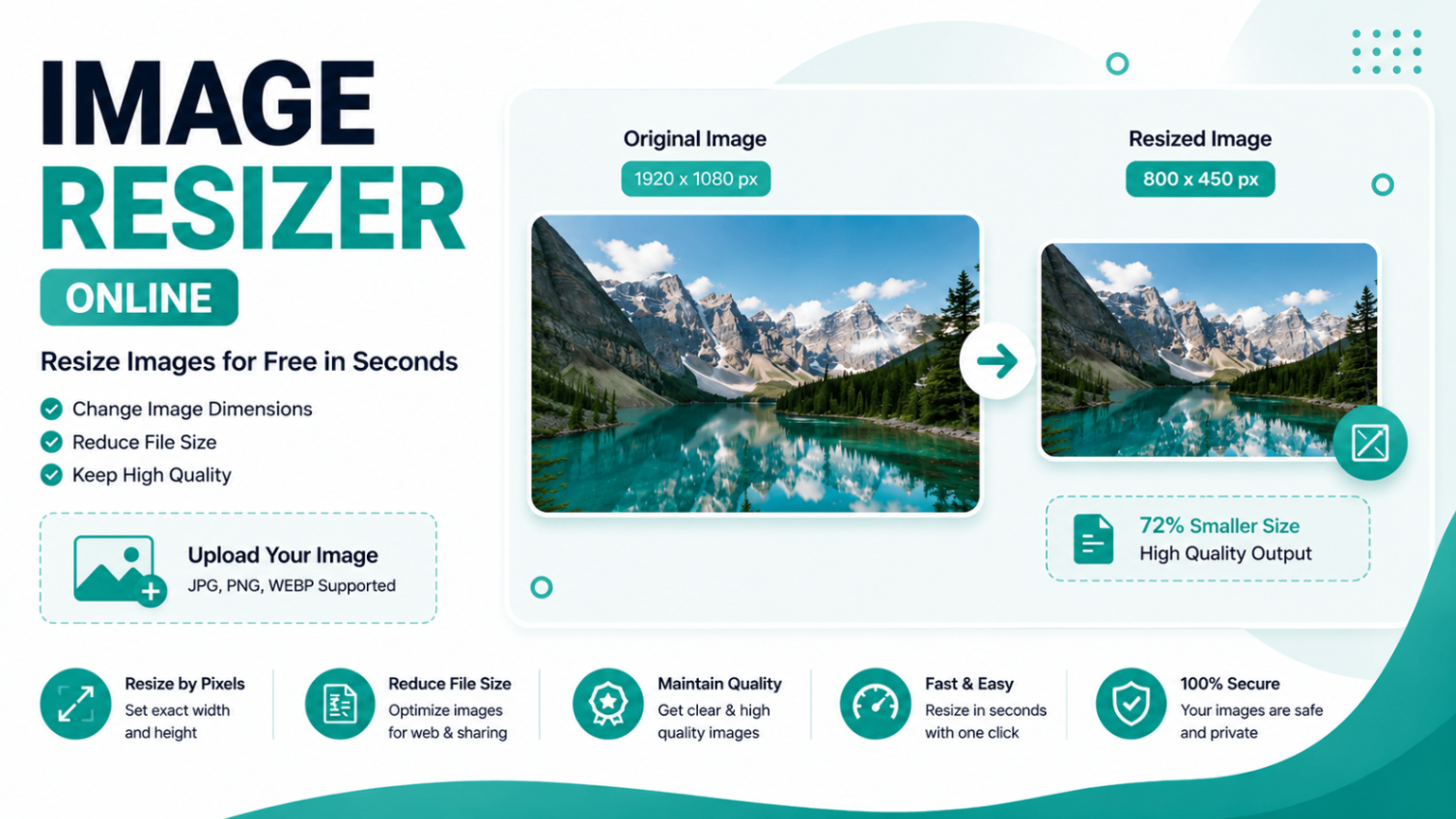
Image Resizer Online
Resize images in seconds.
Image to Base64 Converter
Convert images to Base64 and decode Base64 to image.
Image to Text (OCR)
Extract text from photos & scanned PDFs (OCR).
Image Watermark Adder
Add text or logo watermarks to photos with live preview.
Get new tools & guides
Occasional updates, no spam.